Full guide
Install, daily use, backups and troubleshooting — step by step, no technical background needed.
What's in the app (free, MIT)
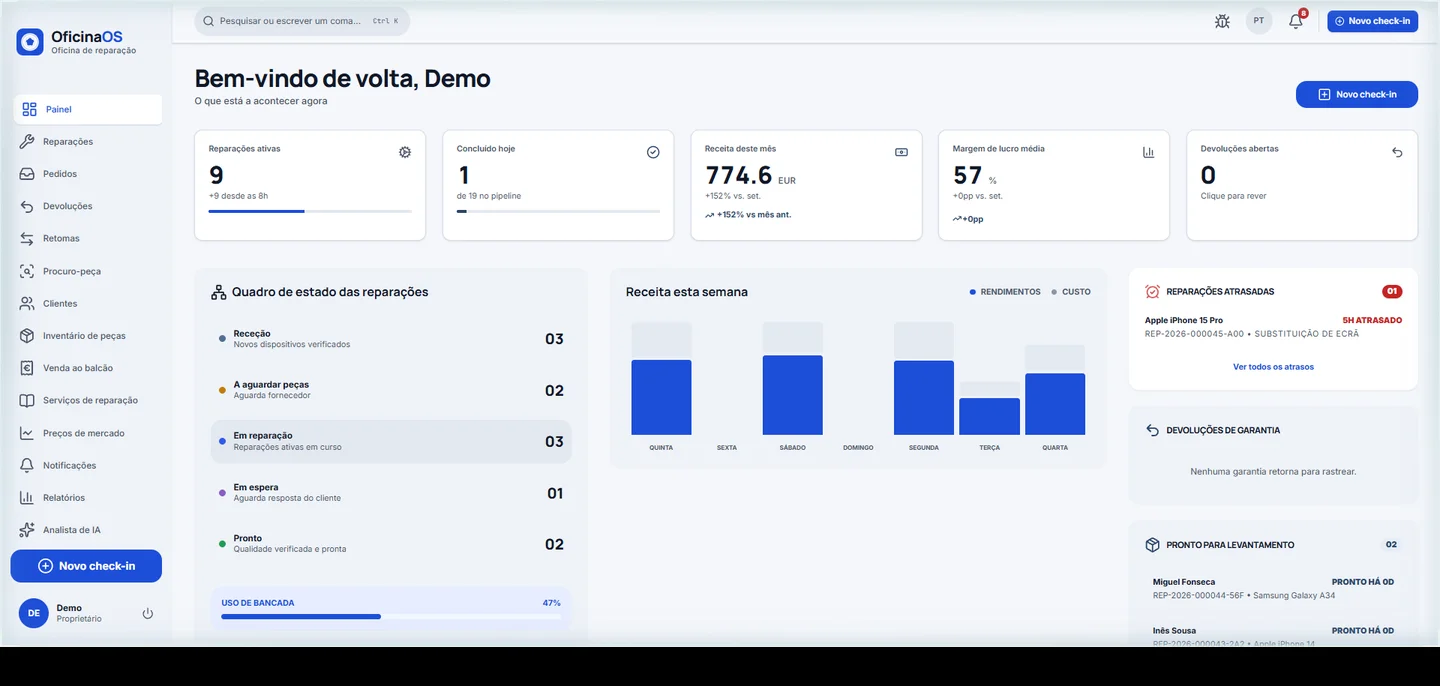
Everything a repair shop uses day to day, with no subscription or limits:
| Menu | What's included |
|---|---|
| Dashboard | The day at a glance — open repairs, priorities and alerts (different view for owner, technician and front desk) |
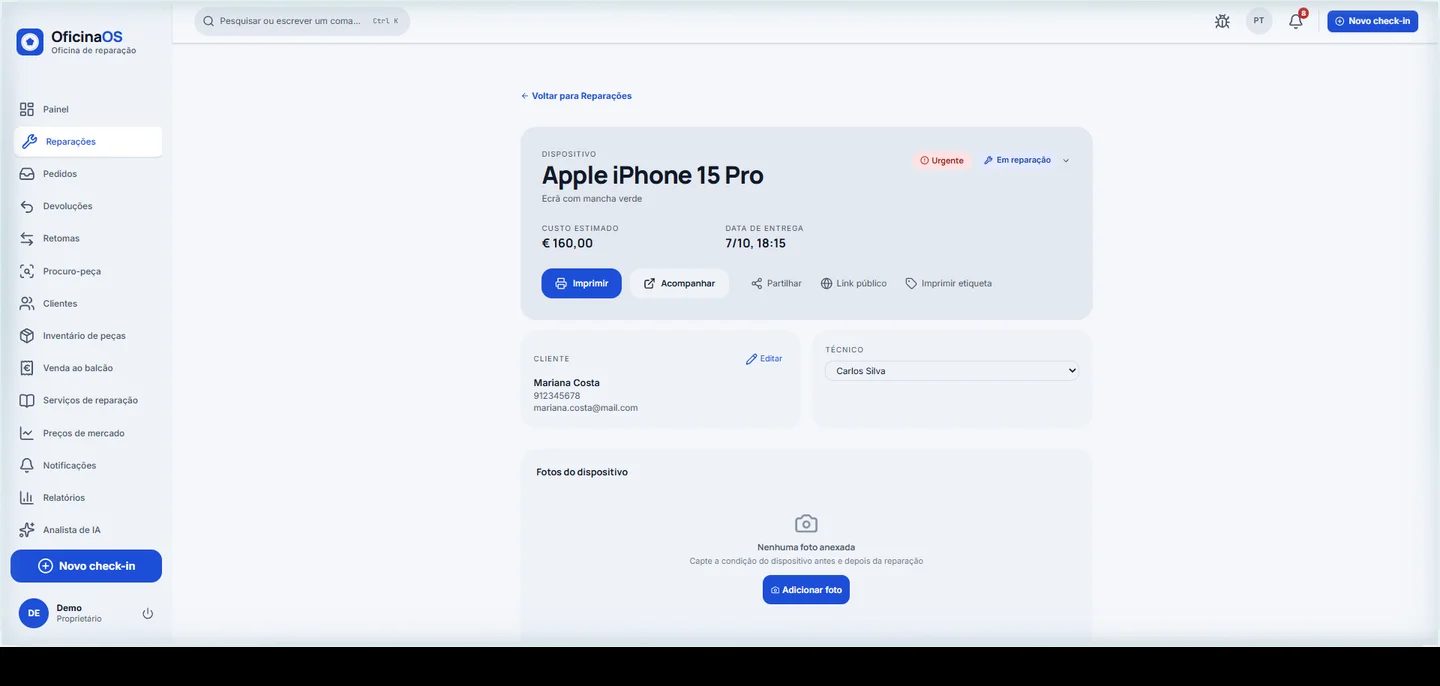
| Repairs | Job cards with unique code (REP-…), statuses (intake → done → delivered), timeline, internal and customer-visible notes, photos and due date |
| Requests | Intake queue — customer-sent requests and diagnostics, ready to convert into a job |
| Returns | Return handling linked to sales and repairs |
| Customers | Records with repair history, search by name/phone/IMEI, consents |
| Parts inventory | Stock, low-stock alerts, suppliers, parts linked to repairs |
| Counter POS | Sell parts and accessories, cash sessions, receipts and payment records |
| Repair services | Repair catalog with prices — the shop's price list |
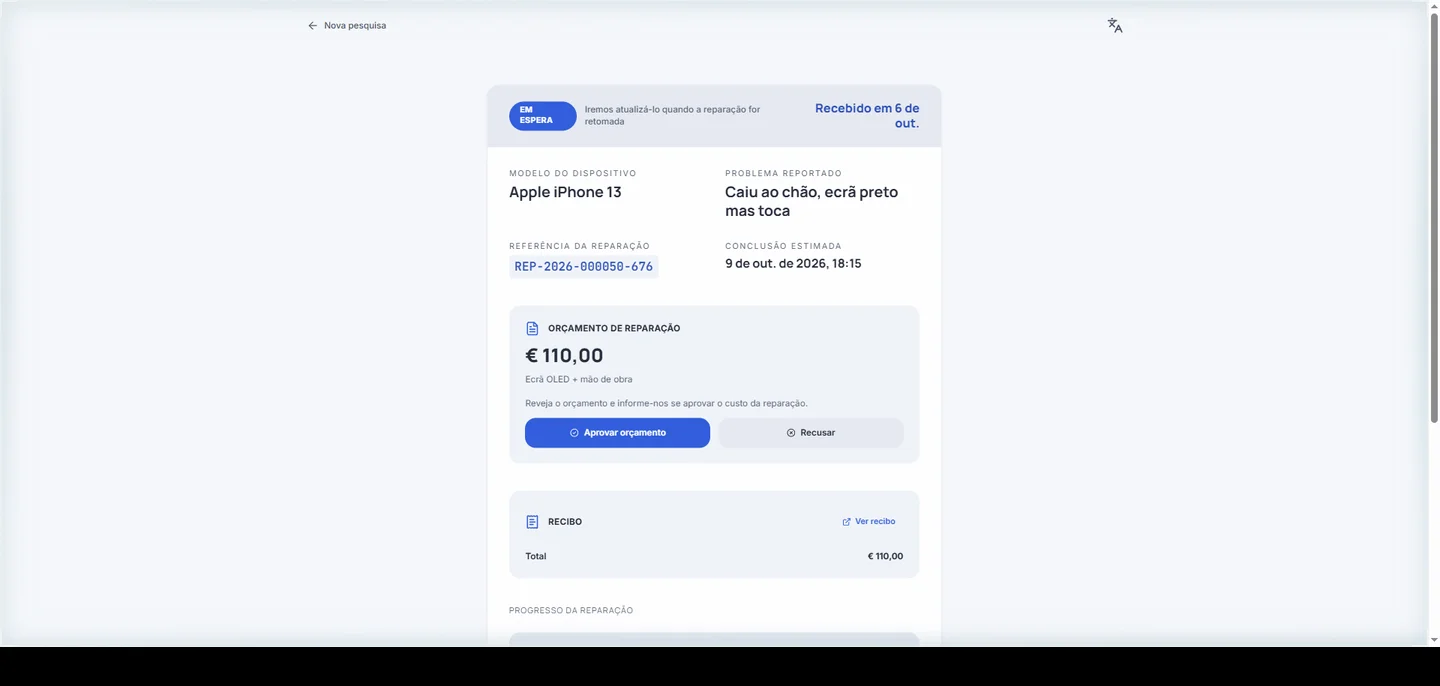
| Quotes | Versioned quotes sent to the customer, approve/decline responses with dated record, full history |
| Notifications | In-app alerts, editable message templates and WhatsApp/SMS send queue |
| Reports | Sales, repairs and margins per period — with an A4 print page |
| Printing | Configurable receipts and labels — 58/80 mm roll, A4, optional sections and direct printing to network thermal printers |
| AI analyst | Questions about the shop's data in plain language |
| Customer tracking | Public page on the shop's network for customers to follow their repair — free on LAN |
| Users | Multiple staff members with roles and per-function permissions |
| Languages | Portuguese, English, French and Spanish |
Three ways to install
OficinaOS is always the same program — what differs is how it runs on the shop PC. There are three paths:
OficinaOS-Setup.exe (recommended) — a normal Windows installer, no Docker: runs as a service, starts with the PC, creates the firewall rule, does automatic daily backups and leaves a tray icon. The right path for the shop PC.
Portable mode — a single bundle with everything inside (the app, the PostgreSQL database and the runtime), with no installation and no Windows services. It exists for the cases where the installer doesn't fit: PCs where you don't have the admin password, people who'd rather not install anything on the system, and as a fallback if the installer fails on a specific machine (antivirus, company policies).
Docker — for a NAS, a dedicated server, Linux or macOS, or for people who already use Docker.
| Setup.exe (recommended) | Portable | Docker | |
|---|---|---|---|
| When to use | Shop PC — almost always | No admin, no install, or installer fails | NAS, server, Linux/macOS |
| Requires admin | Yes, during install | No | Yes, when installing Docker |
| Download | ~339 MB | ~540 MB | ~1 GB (Docker + app) |
| Boot with the PC | Automatic (Windows service) | Optional — scheduled task, asked on first run | Automatic |
| If the app crashes | Restarts by itself | Restarts by itself (wrapper) | Restarts by itself |
| Backups | Automatic daily at 03:30 | At every startup + BACKUP.bat | Automatic daily (every 24h) |
| Off-PC backups | Copy the backups folder | Copy the backups folder | Supported (rclone → S3/B2/GCS) |
| Updates | «Update» button in the app (~100 MB) or Setup over the top | «Update» button in the app or ATUALIZAR.bat | ATUALIZAR.bat — downloads only what changed |
| Remote access (HTTPS) | Cloudflare Tunnel installed separately | Cloudflare Tunnel installed separately | Cloudflare Tunnel included |
Install — OficinaOS-Setup.exe (once, ~10 minutes)
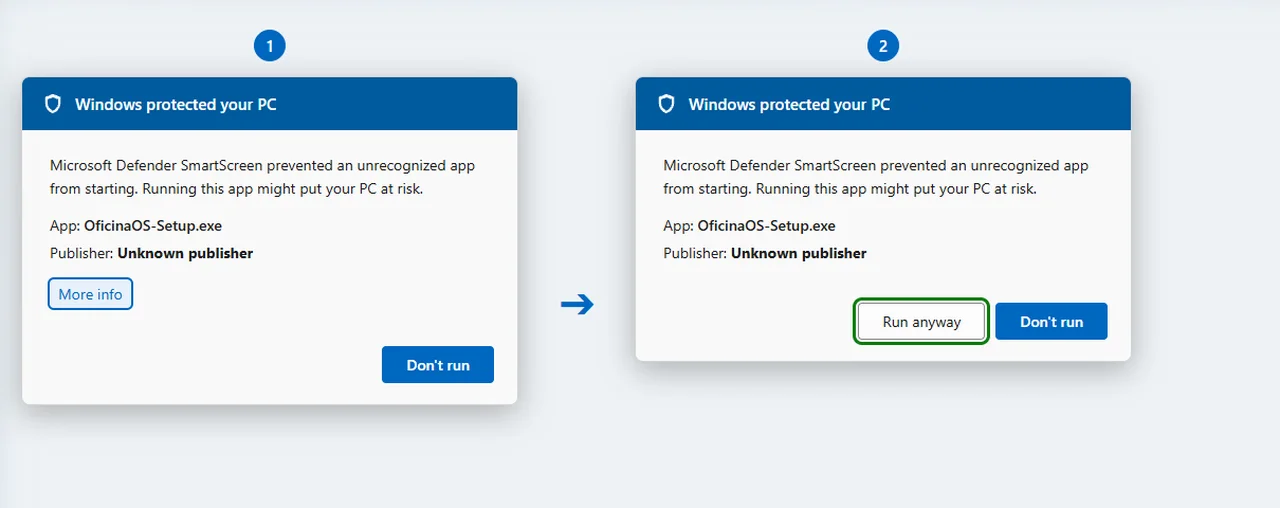
Download OficinaOS-Setup.exe from the releases page and double-click it. If Windows SmartScreen warns: «More info» → «Run anyway».
It asks for admin once (services, firewall and the backup task) and does everything by itself. At the end the browser opens at http://localhost:4000. First login: user admin, password braindead — the app forces you to change both.
A tray icon stays next to the clock: open the app, check status, stop/start, run a backup. On other shop devices: http://oficinaos.local:4000 — or the QR code on the Help page.
On Linux or macOS there's no installer — Docker is used directly:
            git clone https://github.com/braindeadpt/OficinaOS.git
cd OficinaOS && cp .env.example .env
docker compose up -d
docker compose exec app bun run db:seed
Portable mode — no admin, nothing installed
For when the installer isn't an option: you don't have the PC's admin password, you'd rather nothing get installed on the system, or the installer/services were blocked on that machine (antivirus, company policies).
Download oficinaos-portable.zip, extract to a folder and run INICIAR.bat. The app is exactly the same — same code, same PostgreSQL database, same features — and it also has the in-app «Update» button.
Two practical differences versus Setup.exe: autostart is an optional scheduled task (INICIAR.bat asks on first run) instead of a service; and since nobody opens the firewall for you, Windows asks once whether to allow the connection — choose «Allow» so the shop's tablets can connect.
If you arrived here because of the Docker path's «virtualization support not detected» error, portable mode fixes it — but in that case Setup.exe is even simpler, since it doesn't need Docker either.
Day to day — start, stop, files
Once installed, daily use is a double click on a file. The names are the same in both modes — only the folder changes:
- Setup.exe install: the service runs by itself — stop/start and manual backup via the tray icon.
- Docker mode: in the folder where you extracted the installer.
- Portable mode: inside the oficinaos-portable folder — data lives in data\, backups in app\uploads\backups.
- Other shop devices (tablet, phone, another PC) install nothing — they open http://<PC-IP>:4000 in a browser.
| File | What it does |
|---|---|
| INICIAR.bat | Start OficinaOS — opens the browser when ready |
| PARAR.bat | Stop — data stays saved |
| ATUALIZAR.bat | Update to the latest version |
| BACKUP.bat | (portable only) Manual database backup |
| RESTAURAR.bat | (portable only) Restore the database from a backup |
Backups and restore
Backups are compressed files (.sql.gz) containing the whole database. The app shows the last backup status under Settings → Shop → Backups — it works the same in every mode.
With a Setup.exe install a scheduled task backs up daily at 03:30 to C:\ProgramData\OficinaOS\backups. In Docker mode a dedicated service backs up every 24 hours, keeps 14 days, and can optionally copy to external storage (S3, Backblaze, etc.) and automatically verify restores.
In portable mode the backup runs at every startup and via BACKUP.bat. Restoring is done with RESTAURAR.bat (pick a file from backups). Since there's no automatic off-PC copy, copy the app\uploads\backups folder to an external drive or USB stick — backups on the same disk don't protect against failure, theft or ransomware.
Updates
The app shows a banner when a new version exists. On Setup.exe installs and in portable mode, the shop owner gets an «Update» button on that banner — it downloads only the app payload (~100 MB) with SHA-256 verification, backs up the database first and restores the previous version by itself if the new one fails to start. The app is offline ~1-2 minutes during the swap.
Manually also works: run the new Setup.exe over the top, or ATUALIZAR.bat in portable and Docker modes. Docker can also update fully automatically (Watchtower) — database migrations always run by themselves.
In the shop — phones, tablets and PCs
Any device on the shop's Wi-Fi opens the app in a browser — nothing to install. Just type the address the setup gives you and log in:
Works without internet for daily use. Bookmark the address — it never changes.
http://192.168.1.33:4000 # the server PC's address
Icon on the phone's home screen
To open with one tap, like a normal app — takes 10 seconds:
- iPhone/iPad: Safari → Share button → “Add to Home Screen”
- Android: Chrome → ⋮ menu → “Add to Home Screen”
- With remote access on, Android may even offer “Install app” — a real install
Outside the shop — remote access
With the shop PC on, a free Cloudflare Tunnel gives the shop its own https:// address — no router changes, works with any ISP, even the ones blocking ports (CGNAT).
It lets staff check the app from anywhere and makes customer links — tracking, quotes, warranty QR — open everywhere.
- Create a free Cloudflare account + a domain (~$10/year)
- In the Zero Trust dashboard: create the tunnel and copy the token
- Two lines in the .env file and restart the app
- In the app: Settings → Shop → Tracking base URL → the public address
Private by default
The tunnel is optional: the app keeps working 100% on the local network even without internet. Customer data stays in the shop — Cloudflare only carries encrypted traffic while the tunnel is on.
Anyone wanting an extra barrier can enable Cloudflare Access (free): email + code before the login, while customer-facing public pages stay open.
Printing — receipts and labels
OficinaOS prints the three everyday documents straight from the job page or the sale screen: the repair receipt for the customer, the POS sale receipt and the label that goes on the device.
Everything is configured under Settings → Shop → Printing — the choices apply to every document from then on:
| Option | Choices |
|---|---|
| Receipt paper | 58 mm thermal roll · 80 mm thermal roll · A4 sheet (full, invoice-style document) |
| Receipt sections | Toggle each block: IMEI, reported problem, customer signature, tracking QR, warranty |
| Device label | 40×20 mm · 57×32 mm · 62×29 mm |
| Print method | Print dialog — any installed printer — or ESC/POS network thermal printer — direct, no dialog |
Two ways to print
Print dialog (default): the document opens in a new tab and uses the operating system's print dialog. It works with any installed printer — USB, network, Bluetooth — and even «Save as PDF». Labels always take this path: label printers speak other languages (ZPL/TSPL) and the browser handles the driver.
Network thermal printer (ESC/POS): the app sends the receipt straight to the printer over the shop network — one click and the ticket comes out, no dialog. For thermal printers connected by cable or Wi-Fi (Epson TM, Star, Xprinter and other ESC/POS-compatible models). Text uses the CP850 code page — correct accents — and the tracking QR is printed with the printer's native commands, no drivers needed.
- Enable (once): Settings → Shop → Printing → Method «Network thermal printer» → enter IP and port (almost always 9100) → «Send test ticket»
- Find the IP: on most thermal printers, powering on with the FEED button held prints a self-test with the IP; it also shows in the router's device list
- Reserve the IP on the router (DHCP reservation) — otherwise the printer may change address and stop printing
- With the A4 paper preset or a USB-only printer, the print dialog is the path — ESC/POS is for thermal rolls on the network only
Printing — common problems
The most frequent situations:
| Symptom | What to do |
|---|---|
| «Could not reach the printer» | Check it is powered on and on the shop network; review IP and port; retry «Send test ticket» |
| «No network printer configured» | Set IP + port under Settings → Shop → Printing — or switch the method back to «Print dialog» |
| The printer's IP changed | Set a DHCP reservation on the router and update the IP in settings |
| Receipt cut off or wrong margins | In the print dialog: pick the right paper (58 mm, 80 mm or A4), margins «None», scale 100% |
| The receipt tab doesn't open | Allow pop-ups for the app address and print again |
| USB-only printer | Use the «Print dialog» method — ESC/POS needs a printer on the network |
Pro modules — how it works
Pro modules are features that need to reach the internet. The app stays 100% local and free; when a shop wants remote reach, it pairs the app with OficinaOS Cloud — our service that bridges the shop's app to the outside world without exposing the shop's computer.
The shop creates a Cloud account and pairs the app with a code (once). Each module is switched on server-side — no license files. The app syncs with the Cloud every ~2 minutes to send and receive.
Without pairing, everything keeps working on the local network — Pro modules simply don't appear.
| Module | What the shop's customer gets |
|---|---|
| Customer portal | Public link with repair status and approve/decline quote buttons — no need to call the shop |
| WhatsApp bot | Messages the shop's WhatsApp and gets the repair status automatically; approves quotes with YES/NO |
| Remote diagnostics | Runs the phone diagnostic at home (oficinaos-diag, free) and sends it to the shop with a code |
| AI reports | Diagnostic report written in plain language, ready to hand to the customer |
| Certified invoicing | Legal invoice or invoice-receipt issued straight from the repair or sale — via InvoiceXpress, on the shop's own account — Portugal only |
| Online storefront | A public page with items from the shop's catalogue; the customer reserves and the reservation lands in the Requests queue |
| Parts wanted | A board between OficinaOS shops to request parts and reply “I have it” — the deal is settled between shops |
| Market prices | The anonymous median of other shops' repair and part prices, to compare with your own |
| Multi-shop | Revenue and repairs from every shop of the same owner on one OficinaOS Cloud dashboard |
| WhatsApp remarketing | An automatic message to consenting customers whose last repair was a while ago |
Pricing
The full app is free and open source (MIT) — no limits, no accounts, no trial period. Forever.
Pro modules are in beta: during this period, pilot shops use them for free while we measure the real value they bring to the counter. When prices are announced they'll be simple monthly subscriptions — no lock-in, no hidden costs.
* WhatsApp note: replying to customers within the 24-hour window is free. Proactive notifications («it's ready») outside that window need Meta-approved templates, which carry small per-message fees — Meta's cost, not ours.
| What | Status | Price |
|---|---|---|
| Full app (core) | Free forever | €0 |
| OficinaOS Diag (tool) | Free forever | €0 |
| Customer portal | Available (beta) | TBA — free during beta |
| WhatsApp bot | Available (beta) | TBA — free during beta* |
| SMS channel (Android gateway) | Included in core | €0 — free |
| Diagnostics intake | Available (beta) | TBA — free during beta |
| AI reports | Available (beta) | TBA — per report |
| Invoicing (InvoiceXpress) | Available (beta) | TBA — free during beta. The InvoiceXpress account is the shop's own and carries its own service cost |
| Online storefront (+ customisation) | Available (beta) | TBA — free during beta |
| Parts wanted | Available (beta) | TBA — free during beta |
| Market prices | Available (beta) | TBA — free during beta |
| Multi-shop | Available (beta) | TBA — free during beta |
| WhatsApp remarketing | Available (beta) | TBA — free during beta. Template messages carry Meta's cost* |
Customer portal (Pro)
With the module active, every repair gets a «Public link» button on its detail page. Clicking it publishes a redacted snapshot to the Cloud — status, device, quote, due date and timeline — and copies the link.
The link is a per-job secret (a random 16-character code): whoever has it sees the page. Send it to the customer by SMS, WhatsApp or print it on the intake slip. The page updates itself when the status changes in the app.
If a quote is pending, the customer accepts or declines it right on the page — the answer flows into the app through the normal quote flow, with a staff notification.
WhatsApp bot (Pro)
The customer texts the shop's WhatsApp number and the bot replies with real job data — nobody picks up the phone. It works on the shop's own number (the WhatsApp Business app on the phone keeps working in parallel).
Honest notes: replies can take up to ~2 minutes (sync cycle); setup uses Meta's official WhatsApp Business Platform and we assist the first shop's onboarding.
| Customer writes | Bot replies |
|---|---|
| «is it ready?» or any text | Repair status + due date |
| «quote» / «price» | Quote amount + how to answer |
| YES / accept | Approves the pending quote (same flow as at the counter) |
| NO / decline | Declines the quote |
| Repair code (REP-…) | Status of that job |
| «help», audio or image | Escalates to staff with an in-app alert |
SMS channel (free in core)
The same automatic assistant, but over SMS — for shops that don't want (or don't yet have) a Meta business account. An Android phone with a SIM stays in the shop acting as the bridge: the app sends and receives SMS through it, over the normal mobile network. It's free and needs no Cloud — everything happens on the shop network.
No Meta accounts, no template approvals, no per-message cost — only the shop SIM's plan (plans with bundled SMS make the marginal cost zero). Setup takes ~5 minutes and the guide walks through it step by step.
Customer-sent diagnostics (Pro)
The oficinaos-diag tool is free for anyone: the customer downloads it, plugs the phone into a PC and it reads battery, screen, sensors and storage.
With the module active, the shop receives those diagnostics right in the app (intake queue), ready to convert into a repair — the customer only needs the shop's code. The AI reports module turns the technical data into plain-language text to hand to the customer.
Certified invoicing (Pro)
The app issues legal tax documents straight from the sale or the delivered repair — invoice-receipt when the customer has a tax number, simplified invoice when they don't. Issuing goes through InvoiceXpress on the shop's own account: the API key stays encrypted on the shop PC and the app talks directly to InvoiceXpress — the OficinaOS Cloud only controls module access and never sees the documents. Portugal only.
Storefront, parts wanted, prices, multi-shop and remarketing (Pro)
Five more Pro modules, all in beta and switched on in the OficinaOS Cloud account. Each has a short guide:
| Module | What for |
|---|---|
| Online storefront | A public page with the catalogue items you choose — customers reserve and the request shows up in Requests |
| Parts wanted | Ask other OficinaOS shops for a part, or answer their requests |
| Market prices | See the anonymous median of other shops' prices next to yours |
| Multi-shop | A dashboard with revenue and repairs from all your shops |
| WhatsApp remarketing | An automatic message to customers who haven't been back in a while |
Common problems
The most frequent situations and how to solve each:
| Symptom | What to do |
|---|---|
| SmartScreen warns during install | «More info» → «Run anyway» — it's a new file without reputation, not a virus |
| «Virtualization support not detected» | The installer offers both options: enable in BIOS or use portable mode |
| Windows asks to reboot during install | Reboot and run INSTALAR.bat again — normal during Docker setup |
| Windows Firewall prompt | Choose «Allow» on private network |
| Blank page / won't open | Ctrl+F5; make sure the address is http:// (not https://) |
| «Invalid username or password» | Login is by username (admin), not email |
| PC changed IP and other devices can't connect | Update APP_URL in .env (Docker) or delete .env and run INSTALAR.bat again |
| Port 4000 in use (portable) | Change PORT in app\.env |
| Postgres won't start (portable) | Check data\postgres.log; port 5433 in use → change it in data\postgresql.conf and in .env |
| Uninstall everything | PARAR.bat + delete the folder (portable); docker compose down -v + delete the folder (Docker). Warning: deletes the database — back up first |
Frequently asked questions
The questions we hear most often:
| Question | Answer |
|---|---|
| Do I need internet? | Not for daily use — the app runs fully on the shop's network. Only for updates and Pro modules. |
| Does customer data go to a server? | Not by default — the app has no telemetry. With Pro modules, OficinaOS Cloud receives only the data each module needs (e.g. portal pages, messages, reservations and submitted diagnostics), never internal costs or internal notes. The details are in the Cloud privacy policy (cloud.oficinaos.app/privacy). |
| Does it work on phones? | Yes — on the shop's Wi-Fi any device opens it in a browser; outside the shop via remote access (Cloudflare Tunnel). |
| Does the customer install anything? | No — the portal opens as a link in their browser; the bot replies on their normal WhatsApp. |
| How much does it cost? | The full app is free (MIT license). Pro modules are optional subscriptions, in beta. |
| Multiple shops / branches? | Each shop has its own install. With the Multi-shop Pro module, the owner sees revenue and repairs from every shop on one OficinaOS Cloud dashboard. |
| What if the PC dies? | Automatic daily backups; restoring on another PC is copying the backup and rerunning the installer. |
| Mac or Linux? | Yes, via manual Docker — the automatic installer is Windows-only. |
| Can I import data from another system? | Customers and catalog via CSV; contact us for assisted migrations. |
Full documentation
This guide covers the essentials. The GitHub repository has the complete technical documentation — detailed install, remote access, mobile devices, backups with off-site copies and how the portable bundle works inside: